Setup & Configuration Guide
Overview
Microsoft Entra Connect (formerly Azure AD Connect) is the Microsoft tool that bridges your on-premises Active Directory with Microsoft Entra ID (Azure AD) in the cloud. It enables hybrid identity, allowing users to sign in to both on-premises and cloud resources using a single identity.
This guide walks through a complete end-to-end setup of Entra Connect in a Hyper-V lab environment, covering network configuration, domain controller setup, and the Entra Connect installation wizard.
Prerequisites
• An active Microsoft 365 / Azure subscription
• Hyper-V host with at least 2 VMs (Domain Controller + Entra Connect server)
• A registered domain (e.g. ahmedincloud.online)
• Global Administrator account in Microsoft Entra ID
• Windows Server 2016/2019/2022 for both VMs
• Internet connectivity on the Entra Connect VM
Step 1: Environment Setup
- Hyper-V Networking: A proper network configuration in Hyper-V is critical for communication between the Domain Controller (DC) and the Entra Connect server, and for outbound internet access required by Entra Connect.
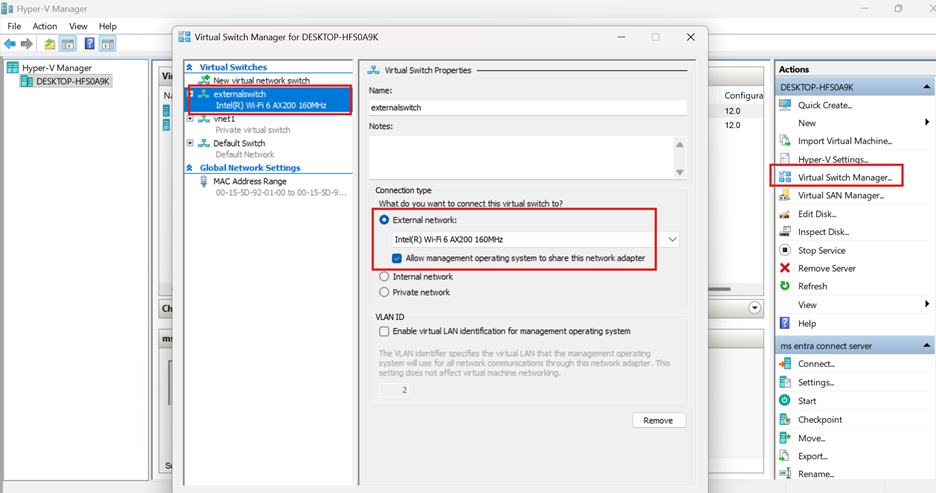
- Create an External Virtual Switch: In Hyper-V Manager, create a new Virtual Switch of type External, bound to your host machine’s physical NIC (Ethernet or Wi-Fi). This allows VMs to communicate with each other and reach the internet through the host
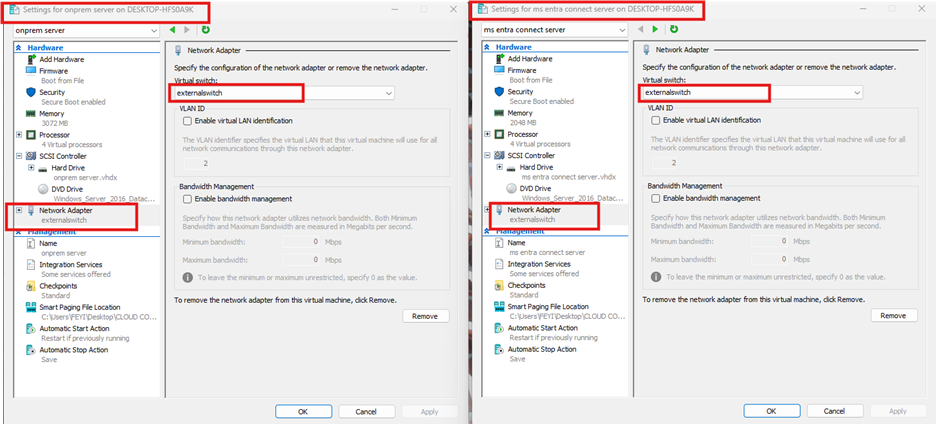
2. Attach VMs to the External Switch:
Edit the network adapter settings of both VMs (DC01 and the Entra Connect server) and connect them to the external switch you just created.
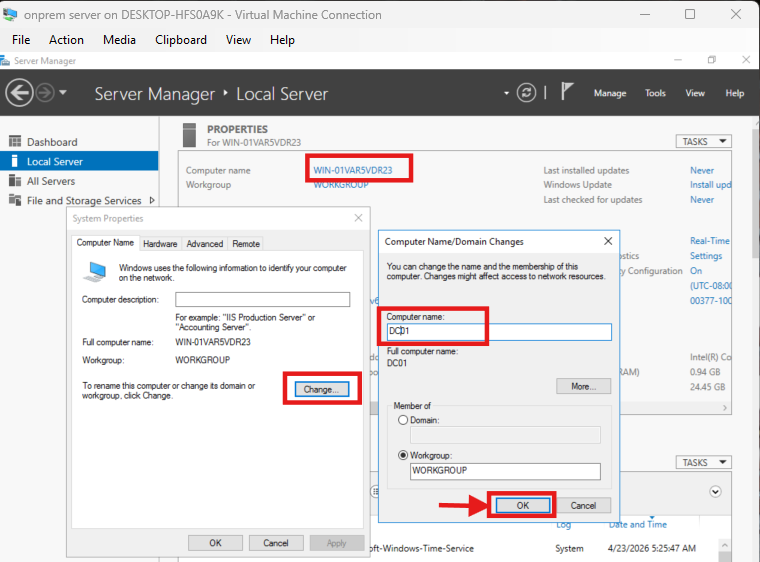
3. Assign a unique name to your computer:
On your VM server manager right click on the computer name → select change → edit the computer name to any of your choice (e.g. DC01) and click okay
4. IP Address Configuration:
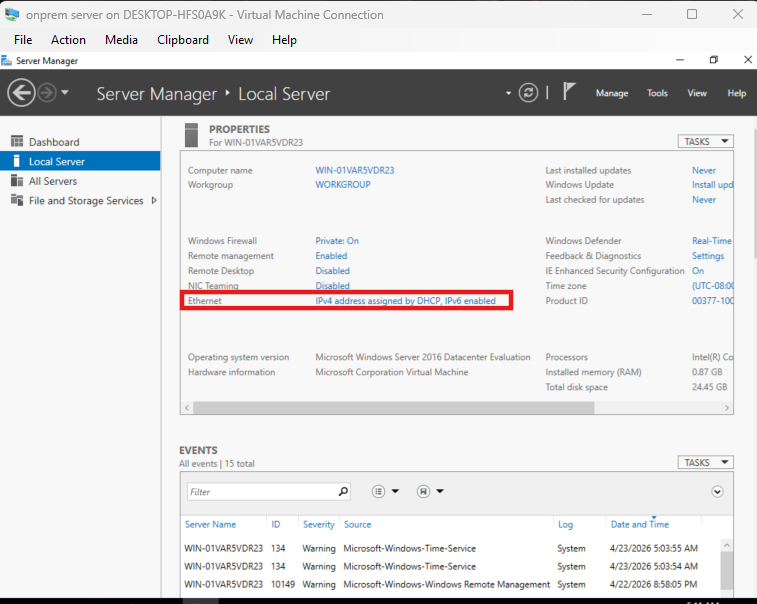
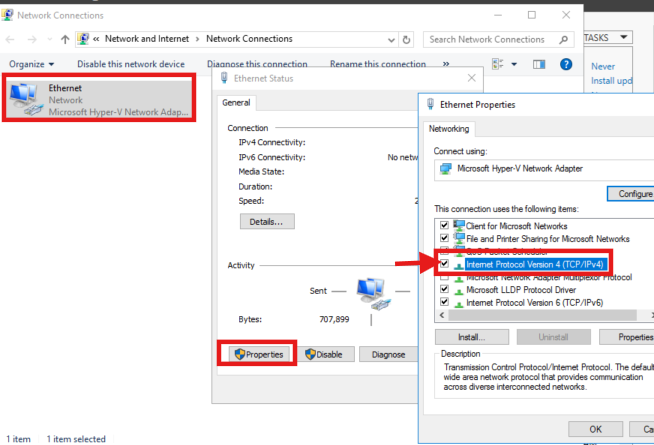
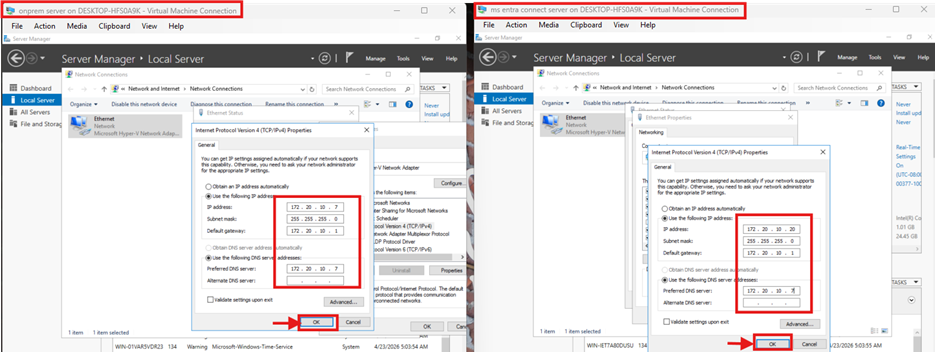
Assign static IP addresses to both VMs so they are reachable consistently. The Domain Controller must also serve as the DNS server for the Entra Connect VM
On your VMs server manager click on ethernet → select properties → click on internet protocol version 4 (IPv4) → edit the network and make sure they are both in same network range and apply the configuration
E.g. Domain Controller (DC01)
- IP address: 172.20.10.7
- Subnet mask: 255.255.255.0
- Gateway: 172.20.10.1
- DNS: 172.20.10.7
Entra Connect Server
- IP address: 172.20.10.20
- Subnet mask: 255.255.255.0
- Gateway: 172.20.10.1
- DNS: 172.20.10.7
Step 2: Domain Controller Configuration
The Domain Controller (DC01) forms the foundation of the on-premises identity infrastructure. It runs Active Directory Domain Services (AD DS) and DNS.
- Install Active Directory Domain Services (AD DS)
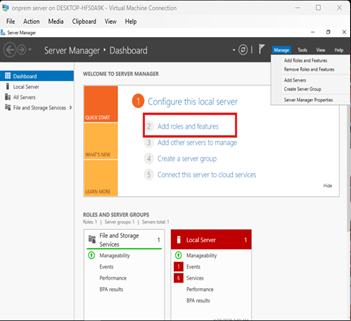
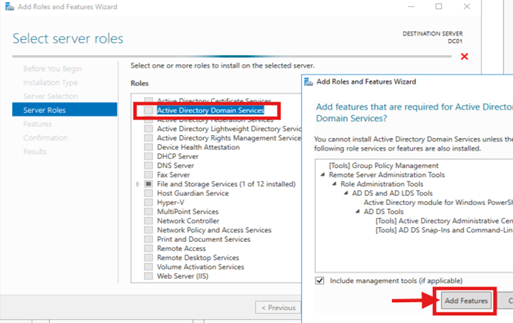
On DC VM, open Server Manager → Add Roles and Features →Select Role-based or feature based installation→ select Active Directory Domain Services. Complete the wizard and install.
2. Promote the Server to a Domain Controller
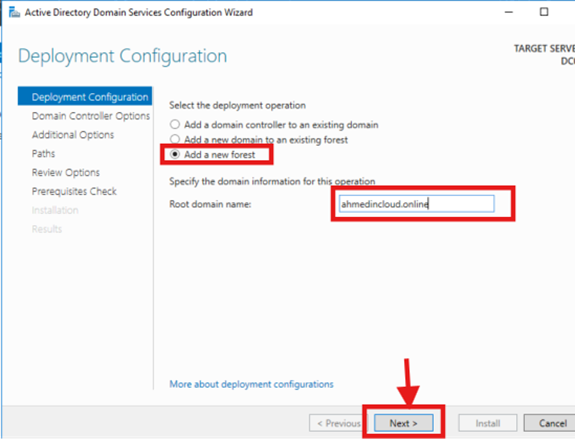
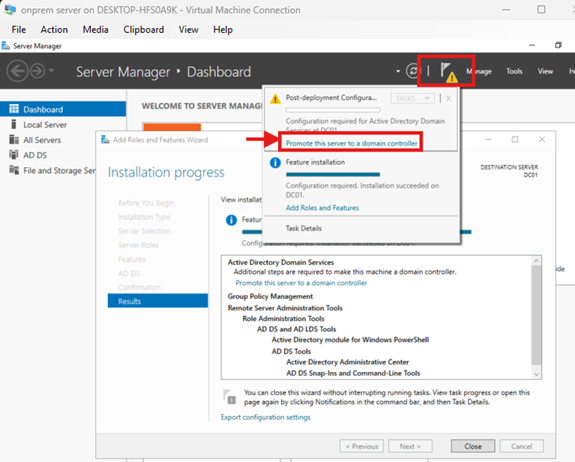
After the AD DS role installs, click the notification flag in Server Manager and select Promote this server to a domain controller. Choose Add a new forest and enter your root domain name → DSRM password → complete the wizard and install
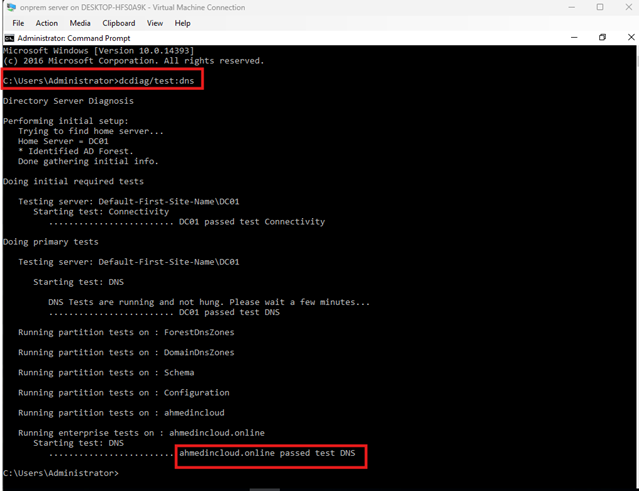
3. Verify Domain Health:
Run the following command in the Command Prompt or PowerShell of your DC VM to confirm DNS and AD DS are functioning correctly: “dcdiag /test:dns”
All tests should return PASSED. Address any failures before proceeding.
STEP 3: Entra Connect Server Configuration
The Entra Connect server is a separate Windows Server VM that will run the sync engine. It must be domain-joined and able to reach both the Domain Controller and the internet.
- Join the Server to the Domain:
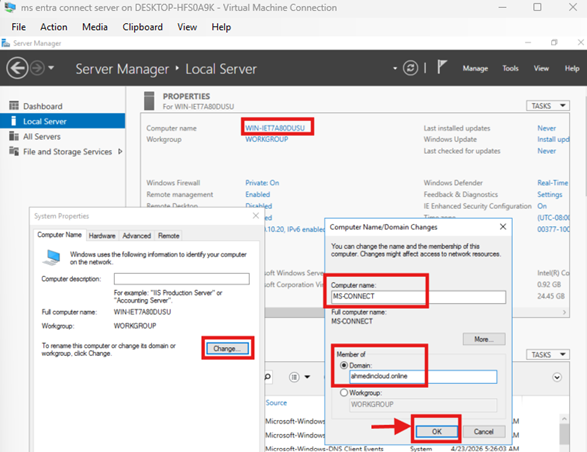
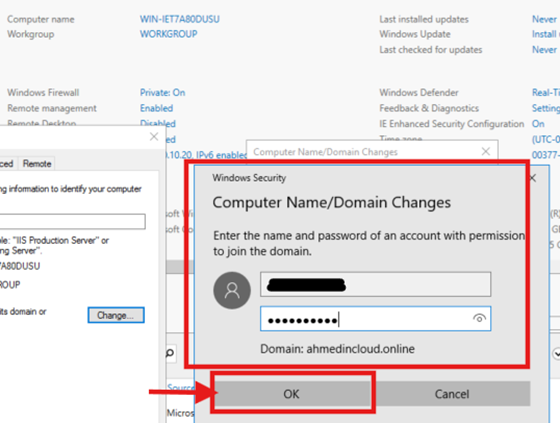
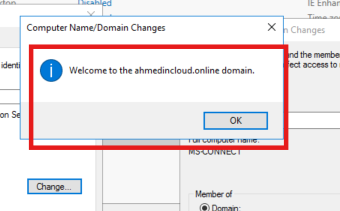
On the Entra Connect VM, go to the server manager click on the computer name → Change → give it a unique name (e.g. MS Connect ) → select Domain and enter your domain (e.g. ahmedincloud.online). Provide domain admin credentials when prompted. And restart the VM after joining.
2. Verify Connectivity:
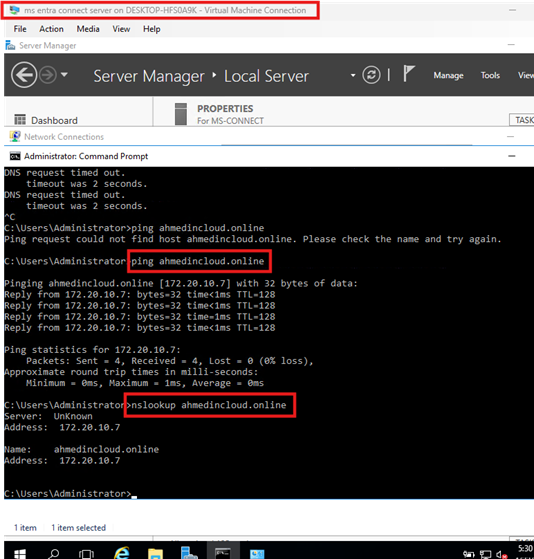
From the Entra Connect server, confirm it can resolve the domain and reach the Domain Controller. Open command prompt and run these commands
“nslookup ahmedincloud.online” “ping 172.20.10.7”
Both commands should succeed.
3. Download Microsoft Entra Connect:
On the Entra Connect server (not the DC), download the Entra Connect installer directly from the Microsoft Entra admin center or from the official Microsoft download page.
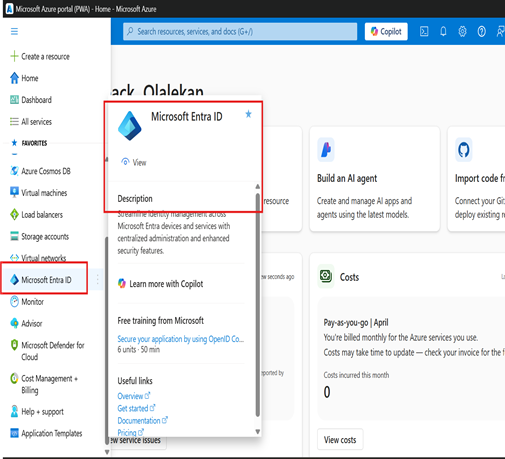
- Log in to azure portal with your Global Administrator account
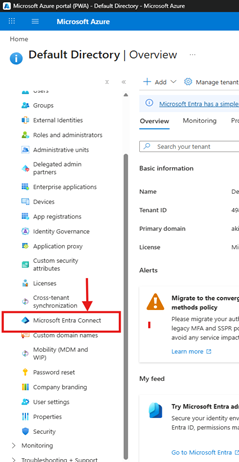
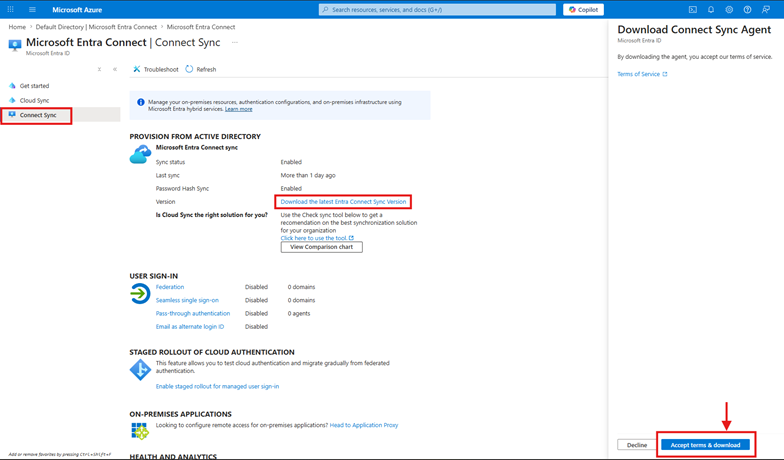
- Navigate to: Identity → Microsoft Entra ID → Microsoft Entra Connect → Connect sync
- Click Download Microsoft Entra Connect and save the installer to the server (I already have it installed)
STEP 4: Entra Connect Installation & Wizard
Run the downloaded AzureADConnect.msi installer as Administrator on the Entra Connect server and follow the setup wizard.
- Welcome & License Agreement
Launch the installer. Accept the license terms and click Continue.
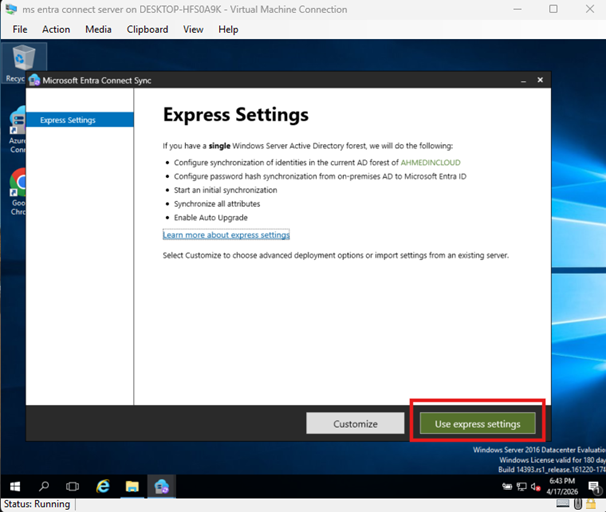
- Express Settings:
For most environments, Use express settings, it is the recommended starting point. It configures Password Hash Synchronization and enables single sign-on with the most common defaults.
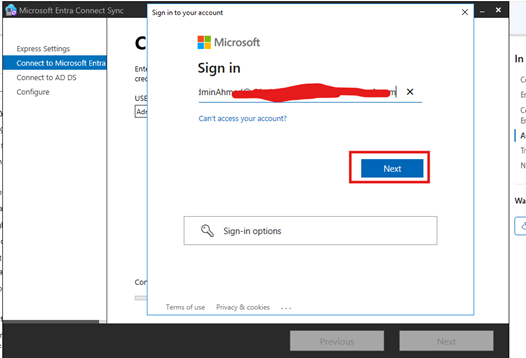
- Connect to Microsoft Entra ID:
Enter the credentials of a Global Administrator account in your Microsoft Entra tenant. This account is used only during setup and does not need to be the same account used for ongoing sync.
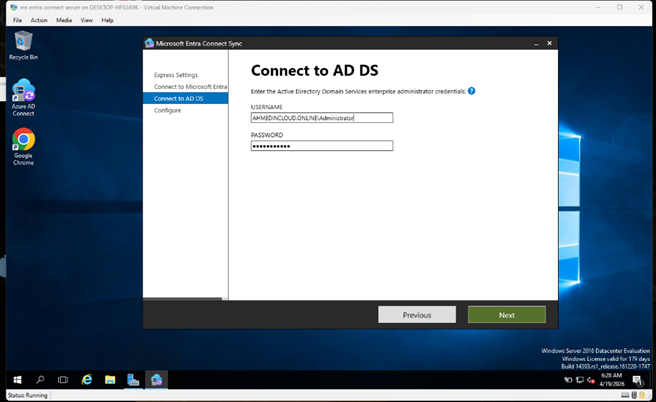
- Connect to AD DS (On-Premises):
Enter the credentials for an Enterprise Admin account in your on-premises Active Directory. Entra Connect uses this to read directory objects for synchronization.
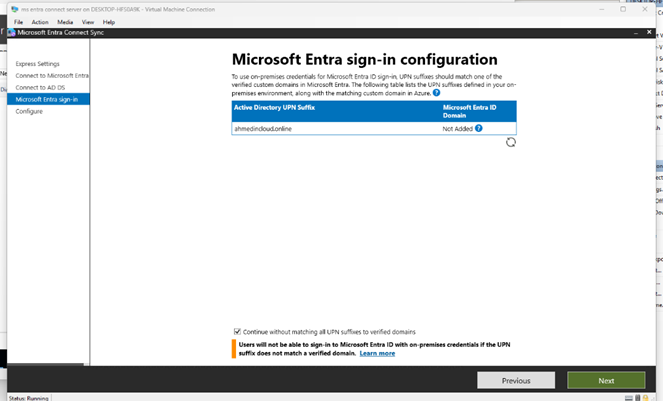
- Microsoft Entra Sign-In Configuration:
This step maps your on-premises UPN suffix (e.g. @ahmedincloud.online) to your verified Azure domain.
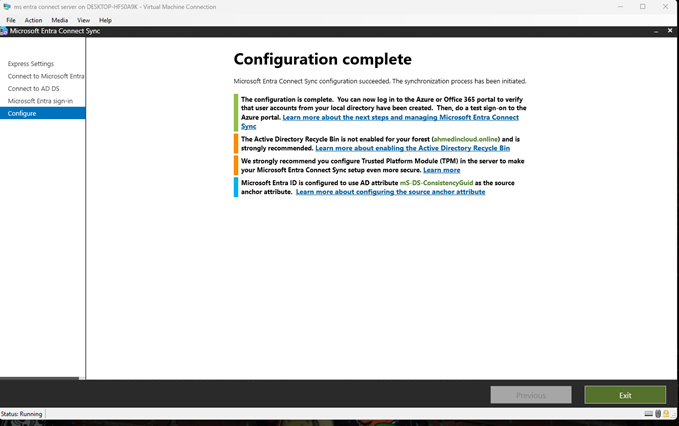
- Configuration Complete
After a few minutes, the wizard displays Configuration complete. Entra Connect is now installed and the initial synchronization cycle starts automatically.
STEP 6: Verification
After the initial sync completes, verify that your on-premises users have been synchronized to Microsoft Entra ID.
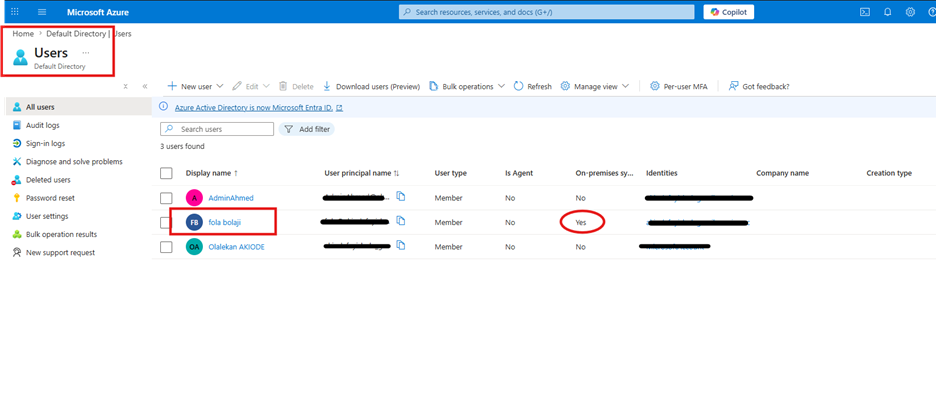
- Check Synced Users in Entra Admin Center: Log in to https://entra.microsoft.com or https://portal.azure.com → Entra ID → Users → All Users. You should see users from ahmedincloud.online listed with a source of Windows Server AD.
- On-premises users appear with a cloud icon and “Synced with on-premises directory” label
- The On-premises sync enabled field shows Yes under each user’s profile
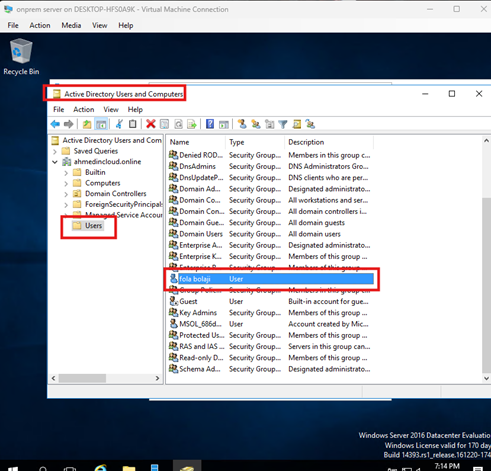
- The user on onprem-server
- Test User Sign-In : Sign in to https://myapps.microsoft.com or https://portal.office.com using an on-premises user account. A successful login confirms end-to-end hybrid identity is working.